Because your second brain deserves a cloud home that you control.
If you’re an Obsidian user, chances are your vault has become your personal treasure chest—full of notes, references, random late-night thoughts, and possibly that one file named draft_v2_final_realfinal.md.
While Obsidian excels at local note-taking, syncing your vault between multiple devices can feel… clunky. You could go with Obsidian Sync (which is excellent), or use iCloud/Dropbox. But what if you want more control? What if you want your data stored on your terms—securely, affordably, and without relying on Big Tech clouds?
That’s where Linode Object Storage and the Remotely Save plugin come in. 🧠⚡
Heads up: This setup is for the slightly adventurous. If you prefer a “click and forget” approach, Obsidian Sync is still your best friend. But if you like tinkering or simply enjoy saying “I run my own sync” at coffee chats, keep reading.
What You’ll Need
Before we get started, make sure you have:
- A Linode account (Object Storage enabled)
- Obsidian installed on your devices
- The Remotely Save plugin (we’ll install it shortly)
- A dash of curiosity (no command-line wizardry required!)
Step 1: Create Your Linode Object Storage Bucket
First, let’s set up the “cloud home” where your Obsidian vault will live.
- Log in to your Linode Cloud Manager
- Go to Object Storage → Create a Bucket
- Fill in the details:
- Label: something memorable like
obsidian-vault - Cluster region: pick one closest to you for better speed
- Access: keep it Private (because no one else needs to read your “business ideas 2030.md”)
- Click Create Bucket
Next, generate your Access Key and Secret Key:
- Navigate to Access Keys in Linode
- Click Create Access Key, name it, and store both keys securely (password managers are your friend)
Think of this as the magical key to your vault’s cloud fortress. Don’t lose it, and definitely don’t share it on Twitter.
Step 2: Install the Remotely Save Plugin in Obsidian
Obsidian doesn’t natively support S3 storage—but the Remotely Save plugin bridges that gap beautifully.
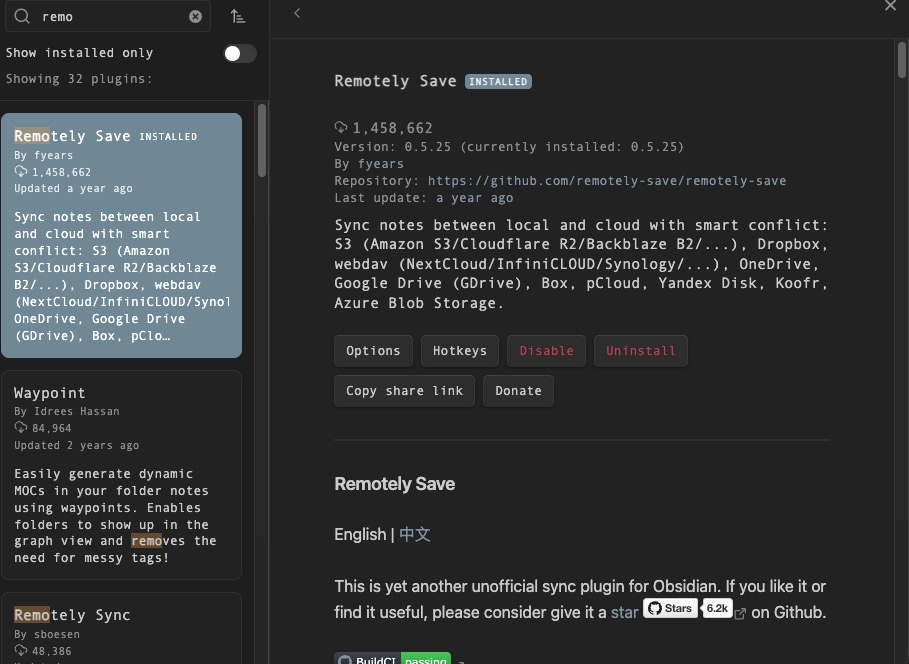
- In Obsidian, open Settings → Community Plugins
- Turn off Safe Mode if it’s on
- Click Browse, then search for Remotely Save
- Install it, then click Enable
Once installed, you’ll see a Remotely Save tab in your settings sidebar.
Fun fact: Remotely Save supports S3-compatible services out of the box, which means Linode Object Storage fits in perfectly like that one missing puzzle piece.
Step 3: Configure Remotely Save for Linode
Here’s the part where we connect Obsidian to your Linode bucket.
In Obsidian:
- Go to Settings → Remotely Save
- Under Choose remote type, select S3
- Fill in the required fields:
- Endpoint: your Linode Object Storage cluster URL (e.g.,
https://in-maa-1.linodeobjects.com) - Bucket: the name of the bucket you created (
obsidian-vault) - Access key & Secret key: from Linode
- Folder path: optional—leave empty to sync the entire vault
- Region: leave blank if Linode doesn’t require one, or match the cluster region
- Test the connection using the built-in Test Connection button
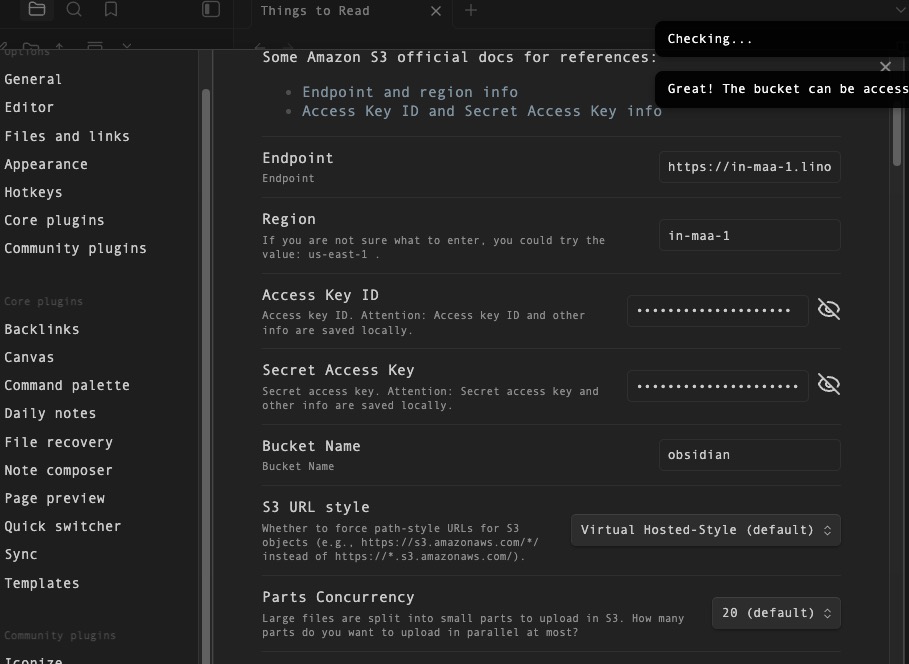
If it shows “✅ Great ! The bucket can be accessed,” congrats—your vault just found its cloud buddy.
Step 4: Sync Your Notes
Now for the fun part. 🎉
To upload your current vault to Linode, open the Remotely Save panel (from the left toolbar) and hit Upload.
On your second device, install the plugin, configure it with the same bucket details, and hit Download to bring your notes down.
Remotely Save also supports automatic periodic syncing. In the plugin settings:
- Toggle Enable periodic sync
- Set the interval (e.g., every 15 minutes)
It’s not quite instantaneous, but it’s close enough that you won’t have to constantly think about syncing manually. (No more emailing yourself “updated notes.zip.”)
Bonus: Enable Versioning for Extra Safety
Linode supports Object Versioning, which lets you recover older versions of your files. Perfect for those “Oops, I just deleted my entire Daily Notes folder” moments at 2 AM.
Here’s the catch though: you can’t enable versioning through the Cloud Manager GUI. You’ll need to use S3-compatible command-line tools like AWS CLI or s3cmd instead.
Quick setup with AWS CLI:
First, configure AWS CLI with your Linode credentials. Then run this command (replace with your actual bucket name and cluster):
bashaws s3api put-bucket-versioning --bucket=your-bucket-name --versioning-configuration Status=Enabled --endpoint-url=https://your-cluster.linodeobjects.com
With versioning on, Linode will quietly keep older versions of files—just in case. Each time you upload or modify a file, it gets a unique version ID, and previous versions stick around for recovery. Note: once enabled, versioning can’t be fully disabled—only suspended.
Bonus 2: Enable Sync on Save for Faster Updates
If waiting for the periodic sync interval feels too slow, Remotely Save has a handy Sync on Save feature that triggers a sync every time you save a file.
In the plugin settings:
- Go to Settings → Remotely Save
- Toggle Sync on Save to enable it
- Optionally, set a debounce delay (e.g., 5-10 seconds) to prevent excessive syncing if you’re a frequent saver
This means whenever you hit Ctrl+S (or Cmd+S on Mac), your changes get pushed to Linode almost immediately. It’s not quite real-time like Obsidian Sync, but it’s pretty close—and you’ll barely notice the delay.
Pro tip: If you’re editing heavily on one device, you might want to keep this off to avoid constant uploads. But if you switch between devices frequently and want your latest changes available quickly, this feature is a game-changer.
Think of it as the “anxious note-taker’s setting”—for those of us who need to know our thoughts are safely backed up the moment we write them. ✍️☁️
A Few Caveats (Because We’re Friends)
Before you go all-in:
- No real-time sync: Unlike Obsidian Sync, this isn’t millisecond-fast. Expect short delays depending on your sync interval.
- Conflicts: If you edit the same file on two devices between syncs, the plugin will create conflict copies. Think “two Spider-Men pointing at each other” 🕷️🕷️
- Bucket access = full access: Keep your keys secure. Anyone with them could technically access your files.
Why This Setup Rocks
Pros
- Cost-effective—Linode’s pricing is predictable and affordable
- Full control—No third-party snooping on your notes
- Plugin-based—Feels like a natural part of Obsidian
- Cross-platform—Works on all devices supported by Obsidian
Cons
- Requires initial setup
- Not real-time like Obsidian Sync
- You’ll occasionally have to think about conflicts
Wrapping Up
Setting up Remotely Save with Linode Object Storage is like giving your Obsidian vault its own cozy private cloud. It’s perfect for tinkerers, privacy-focused folks, or anyone who wants a bit more control without getting too deep into terminal commands.
If you’re happy with Obsidian Sync, stick with it. But if you want to self-host your sync in a way that feels elegant and integrated—this setup is a gem. ✨
So go ahead, configure that plugin, and watch your notes seamlessly float between devices like magical scrolls in a fantasy library.
“With great power comes great… bucket policies.” 🕷️🪣